[ez-toc]
What Are PDF File Converters?
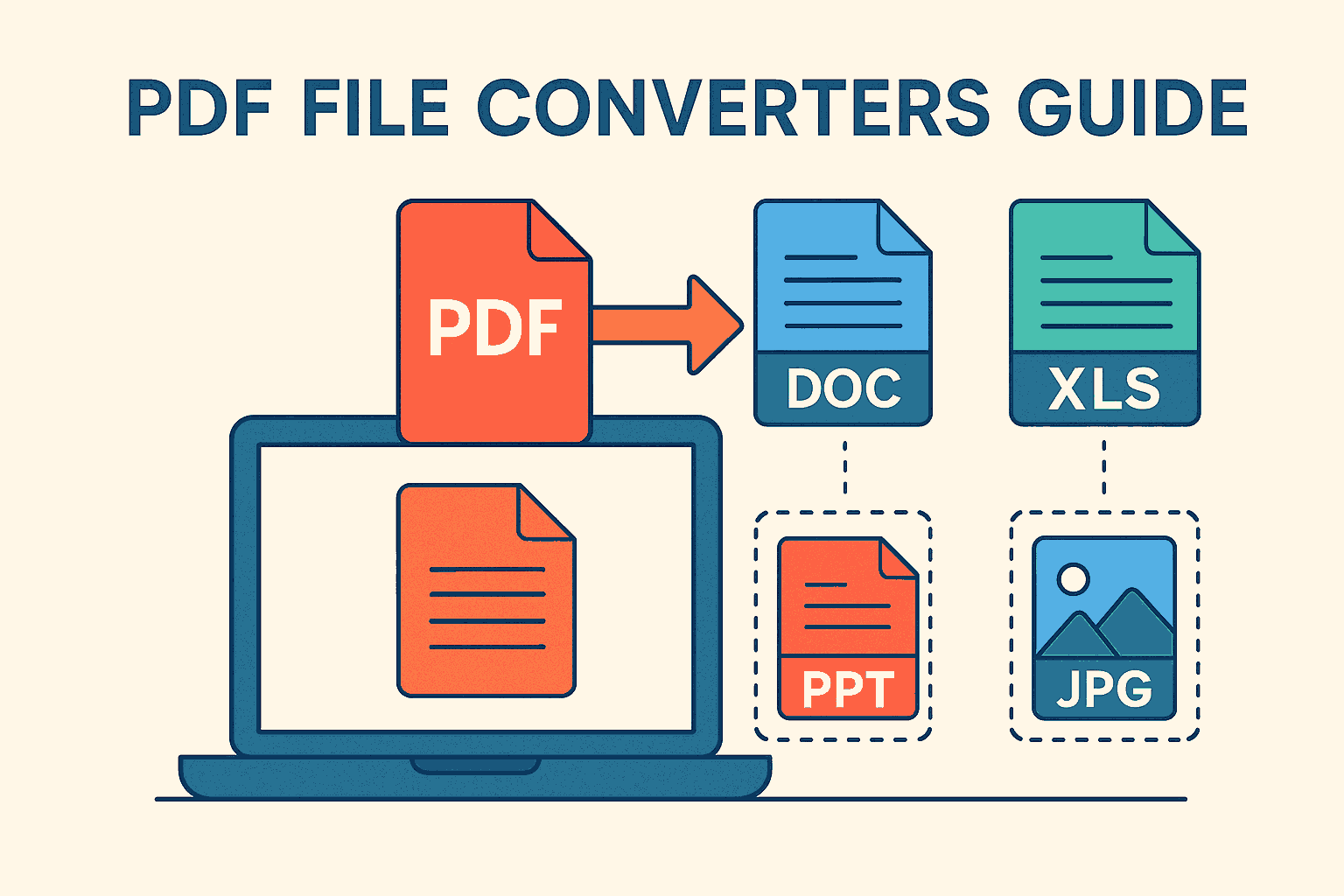
PDF file converters transform PDFs into editable formats—or convert other formats back to PDF—so you can edit, analyze, present, and archive with confidence.
- PDF → Word (.docx): Edit text and images — coming soon.
- PDF → Excel (.xlsx): Extract tables for analysis — coming soon.
- PDF → PowerPoint (.pptx): Turn dense docs into slides — coming soon.
- PDF → JPG/PNG: Export pages as images — PDF to Image (live).
- Office → PDF: Create clean, shareable files — coming soon.
- Split/Merge PDF: Rearrange, extract, and combine — coming soon.
- QR Generator: Add scannable links — coming soon.
How Converters Work (Text, Images & OCR)
Understanding how converters process content helps you choose the right settings for maximum fidelity and speed.
Text-based PDFs
Converters read embedded fonts and character maps to reconstruct words, paragraphs, lists, and headings. Quality tools keep layout fidelity—columns, headers/footers, and spacing—so outputs are close to pixel-perfect.
Image-based PDFs
Scans/photos require OCR to extract editable text. Modern engines detect glyphs, language, reading order, and table boundaries. Complex layouts may need a quick manual pass.
Pro tip: For better OCR accuracy, re-scan at 300 DPI or enhance before conversion.
Tables, charts & forms
Strong table detection preserves cell boundaries and headers for clean Excel/CSV exports. Charts/vector art may export as images, though some tools map shapes/text to editable objects.
Deep dive: PDF spec (ISO 32000) and Adobe OCR basics (Adobe help).
PDF File Converters: Pros & Cons
Pros
- Faster edits with accurate layout.
- OCR unlocks text in scans and photos.
- Flexible exports: Word, Excel, PPT, images.
Cons
- Complex designs may need touch-ups.
- Low-DPI scans reduce OCR accuracy.
- Tables can require manual cleanup.
Feature Checklist for Picking the Right PDF File Converters
- Layout Accuracy: Fonts, spacing, lists, columns, headers/footers.
- OCR Quality: Languages, rotated scans, tables.
- Batch Conversion: Queue many files — coming soon.
- Table Detection: Precise Excel/CSV extraction.
- File Limits & Speed: Size caps, performance, queue transparency.
- Security: HTTPS, encryption, auto-deletion policies.
- Platform Support: Windows, macOS, Linux, mobile.
- Editing Tools: Merge, split, compress, sign, watermark — coming soon.
- Price & Licensing: Clear tiers, usage caps, commercial terms.
- Support & Docs: Tutorials, guides, responsive help.
Real-World Use Cases
Students & Researchers
Convert articles to Word for annotation, export tables to Excel for statistics, and split PDFs by chapter — coming soon.
Small Businesses
Turn invoices into spreadsheets, merge quotes into one PDF, and create branded PDFs from templates — coming soon.
Legal & Compliance
OCR affidavits, apply Bates numbering — coming soon — export exhibits to images, protect filings.
Marketing & Sales
Repurpose whitepapers into decks, add QR codes — coming soon — compress PDFs for email, track engagement.
Desktop vs Online Converters
Desktop Software
Best for sensitive data and large volumes. Local processing, advanced OCR, and robust editing provide control and privacy.
Online Tools
Fast, convenient, and device-agnostic. Start with our live PDF to Image tool while other converters are coming soon.
More tutorials on our blog.
Step-by-Step Workflows (With Our Tools)
PDF to Word
- Open the PDF to Word converter — coming soon.
- Choose Keep Layout and convert.
- Review headings, lists, tables in Word/Google Docs.
Word to PDF
- Open the Word to PDF converter — coming soon.
- Upload your .doc/.docx and convert.
- Verify fonts and images; archive/share.
Split & Merge
- Extract pages with PDF Split — coming soon.
- Assemble with Merge PDF — coming soon.
- Export to Word/Excel if further edits are needed.
PDF to Excel
- Use the PDF to Excel converter — coming soon.
- Enable table detection and headers; convert.
- Set data types and add formulas/charts.
PDF to PowerPoint
- Use the PDF to PPT converter — coming soon.
- Choose slide size and image quality.
- Fine-tune layouts and add speaker notes.
PDF to JPG/PNG
- Go to PDF to Image.
- Select page range and output resolution.
- Download images for web, slides, or social.
Tip: Add scannable links to flyers/invoices with a QR generator — coming soon.
Troubleshooting & Best Practices
Layout looks broken in Word
- Switch between “retain flow” and “keep layout.”
- Remove noisy headers/footers before conversion.
- For complex brochures, convert to PPT first, then export to Word.
OCR misses characters
- Re-scan/enhance to 300 DPI; enable language packs.
- Run OCR on grayscale; avoid heavy compression.
- Check table detection; split merged cells.
Tables don’t align in Excel
- Enable “detect table boundaries & headers.”
- If columns merge, export to CSV then reimport with delimiters.
- Split large tables before conversion.
Fonts and special characters render incorrectly
- Ensure fonts are embedded in the source PDF.
- Install missing fonts; try another OCR language.
- Prefer Unicode exports to preserve diacritics.
Accessibility & Compliance
Accessible conversions help everyone—especially screen-reader users. Use semantic headings, alt text, correct reading order, and tagged PDFs.
- Check reading order in the output document.
- Add alt text to informative images (e.g., the hero above).
- Use descriptive link text instead of “click here.”
- Avoid image-only text; keep text selectable.
Security & Privacy Tips
- Encrypt sensitive PDFs — coming soon.
- Redact confidential data — coming soon.
- Review privacy policies and auto-deletion timelines.
- Prefer local processing for finance/legal/medical files.
- Compress files before email to reduce bounce risk — coming soon.
Frequently Asked Questions
Are free PDF converters safe?
They can be. Choose tools with HTTPS, clear deletion policies, and strong reputations. For highly sensitive files, convert on desktop or behind a firewall.
Which converter is best for OCR?
Desktop OCR engines often win on tough scans, but web tools are excellent for everyday files. Learn how OCR works from Adobe’s official guide.
How can I keep the layout identical?
Start with a text-based PDF, choose “keep layout,” then proof headings, lists, tables, and footers. Complex designs may still need a light touch-up.
Can I automate batch conversions?
Yes—queue multiple files in batch mode — coming soon.
Glossary
| Term | Meaning |
|---|---|
| OCR | Optical Character Recognition: converting images of text into editable text. |
| Tagged PDF | PDF with semantic structure for accessibility and screen readers. |
| Vector vs Raster | Vector graphics are resolution-independent; raster images are pixel-based. |
| Embedded Fonts | Fonts stored inside the PDF so appearance is consistent across devices. |
Conclusion & Next Steps
PDF file converters bridge reliable sharing and flexible editing. Use our live PDF to Image tool today, and watch for new utilities as they’re coming soon.